If you’re trying to download Udemy courses for offline learning, you’ve probably come across Udeler. It’s a popular open-source desktop application that allows users to download Udemy videos directly to their computer. But one common question many Mac users ask is: Does Udeler work on macOS?
The short answer is yes but with some important conditions and limitations. In this article, we’ll break everything down in a simple, user-friendly way so you understand exactly how Udeler performs on macOS, how to install it, common issues, and what alternatives exist if something doesn’t work.
Read More: Can Udeler Download Entire Courses?
What is Udeler?
Udeler is a free and open-source application designed to help users download Udemy course videos for offline viewing. Instead of streaming lectures online every time, Udeler allows you to save content locally on your device so you can learn without internet access.
It’s especially useful for students, developers, and professionals who want to study on the go or have limited internet connectivity.
Udeler is not officially affiliated with Udemy, which means it works as a third-party tool. Because of that, it depends on Udemy’s structure and login system, which sometimes changes over time.
Does Udeler Work on macOS?
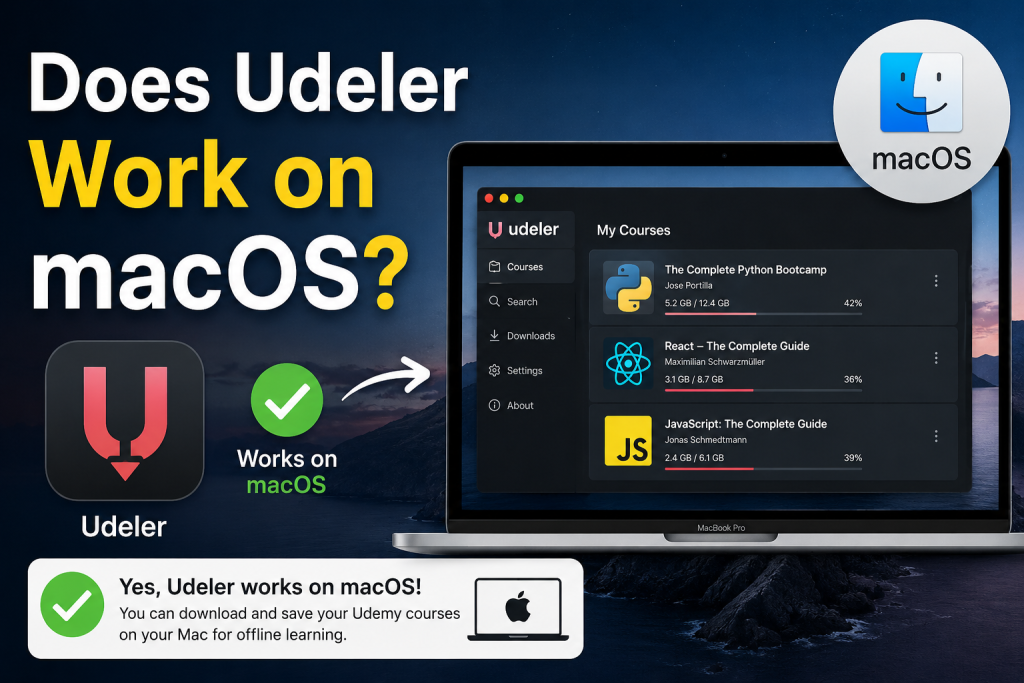
Yes, Udeler does work on macOS, but not as smoothly as users expect in all cases.
Udeler is built using Electron (a cross-platform framework), which means it is designed to run on:
- Windows
- macOS
- Linux
On macOS, Udeler can run on most modern versions like macOS Catalina, Big Sur, Monterey, Ventura, and newer versions as well.
However, there are a few important things to understand:
It is not always officially maintained
Udeler’s development has slowed down over time. This means some macOS updates may break compatibility until the community fixes it or you use a patched version.
Security permissions may be required
macOS has strict security settings. When installing Udeler, you may need to:
- Allow apps from unidentified developers
- Approve permissions in System Settings
- Bypass Gatekeeper warnings
This is normal for open-source tools that are not signed by Apple.
Login issues can occur
Since Udeler uses Udemy login credentials, sometimes authentication fails if Udemy updates its login system.
How to Install Udeler on macOS
Installing Udeler on a Mac is fairly simple, but you should follow the steps carefully.
Step 1: Download Udeler
You first need to download the macOS version of Udeler from its official repository or trusted release source.
Make sure you are downloading the correct file (usually a .dmg or .zip file for macOS).
Step 2: Open the Installer
After downloading:
- Open the
.dmgfile - Drag Udeler into the Applications folder
Step 3: Allow Security Access
If macOS blocks the app:
- Go to System Settings
- Click Privacy & Security
- Allow Udeler manually
Step 4: Launch the App
Open Udeler from Applications. The first launch may take a few seconds.
Step 5: Log in to Udemy
Use your Udemy account credentials to sign in and start accessing your courses.
Common Problems on macOS
Even though Udeler works on macOS, users often face some common issues.
App won’t open
This usually happens due to macOS security restrictions. You need to manually allow the app in settings.
Login not working
Udemy sometimes updates its authentication system, causing Udeler login failures.
Download errors
If a course doesn’t download, it may be due to:
- Expired login session
- Course privacy restrictions
- Broken Udemy API compatibility
App crashes on newer macOS versions
Since Udeler updates are not frequent, newer macOS updates can cause instability.
Is Udeler Safe for macOS?
Udeler itself is open-source, which means its code is publicly available. That makes it generally safe to use.
However, safety depends on where you download it from.
If you download it from unofficial websites, you risk:
- Malware
- Modified versions
- Outdated builds
To stay safe:
- Always download from trusted sources
- Avoid third-party modified versions
- Keep your macOS updated
Also, remember that using third-party tools to download Udemy content may violate Udemy’s terms of service, so it’s important to use it responsibly for personal learning only.
Advantages of Using Udeler on macOS
Despite limitations, Udeler still has some useful benefits for Mac users:
Offline Learning
You can download entire courses and watch them without internet access.
Simple Interface
Udeler has a very clean and easy-to-use interface, making it beginner-friendly.
Cross-Platform Support
If you switch between Windows, Linux, and macOS, Udeler works across all systems.
Free to Use
It is completely free, unlike many paid download tools.
Disadvantages on macOS
It’s also important to understand the downsides:
Not frequently updated
Compatibility issues can appear after macOS updates.
Download failures
Some courses may not download correctly.
No official support
There is no dedicated customer support team.
Potential security warnings
macOS may flag the app during installation.
Best Alternatives to Udeler on macOS
If Udeler doesn’t work properly on your Mac, you can consider alternatives:
Udemy Mobile App
Udemy officially allows offline downloads on its mobile app (iOS and Android). This is the safest option.
Browser Offline Features
Some courses can be accessed offline through browser caching (limited functionality).
Screen recording tools
macOS has built-in screen recording via QuickTime Player, which some users use for personal study (check legal restrictions before using).
Conclusion
Udeler does work on macOS and can be a helpful tool for downloading Udemy courses for offline learning. However, its performance is not always consistent due to limited updates, macOS security restrictions, and occasional compatibility issues with newer system versions. While many users can still run it successfully on Mac with proper installation steps, others may experience login or download problems after system updates.
If you are comfortable troubleshooting minor issues, Udeler can still serve your learning needs. But for a more stable and secure experience, using Udemy’s official offline features on mobile or supported devices is often the better long-term option.